



ABBADOX PROVIDER USER GUIDE
Use the resources below to learn how to register for and navigate the AbbaDox Provider Portal, request appointments, schedule screening exams, and access patient information.
Need access or the complete guide?
Request access to the AbbaDox Provider Portal, or view and download the complete AbbaDox Provider User Guide, including all five sections in one convenient PDF
Last updated September 09, 2026
If you forget your password, click the Forgot Password link on the main login page to reset your password
Registration & Login
Registering for Referring Portal
New referring providers will receive login credentials to the Referring Provider Portal from the imaging center marketing team or another specified individual from the facility.
Log In to Referring Provider Portal
If this is your first time logging in, you will be prompted to change your password and accept a HIPAA statement.

3. Click Text (***) ***-#### to text a security code to your phone.

4. Enter the code from your texts and click Login (example code 305187 shown below).

Navigating the Referring Provider Portal
The Referring Provider Portal is used by referring providers to submit referrals, request appointments, and view results for their patients.
Final Results Worklist
After logging in, the default view for most users will be the Final Results worklist. This list displays completed imaging procedures and allows users to read finalized reports.

Click the  and then click DICOM to view the study images or Patient Chart to view patient demographics and documents, OR click the
  and
and  buttons.
Open Appointments Worklist
The Open Appointments list displays all patient appointments and their current status in the imaging workflow.

For appointments in Pending status, the Pending Reason column provides additional details on the pending appointment.
Click the pencil icon  , named Patient Chart, to view patient demographics and documents.
Click the  and then click DICOM to view the study images.
No Show/Canceled Worklist
The No Show/Canceled Worklist displays patients who have either “no showed” to their appointment or their appointment was canceled for some other reason. If canceled, this worklist will also display the Canceled Reason.

Request Appointment Workflow
Referring providers can request appointments for patients using the Request Appointments button in the portal.
Request Appointment Button
To request an appointment:
- Click Request Appointment in the top right corner to launch the Scheduling Wizard in a new window.

- In the Scheduling Wizard window, select Referring Request an Appointment.

Step 1 - Patient Info

- Clicking Find Patient without entering any patient information first will search for all patients that have been previously referred by the provider logged in and auto-fill patient details.
Click the X in the right corner of this pop-up box to close it or click the correct patient and click Continue to select them.
2. If requesting an appointment for a new patient, enter their Date of birth, First Name, and Last Name, and click Find Patient.
3. If no results are found, click Expand All to display additional fields and continue entering patient details.
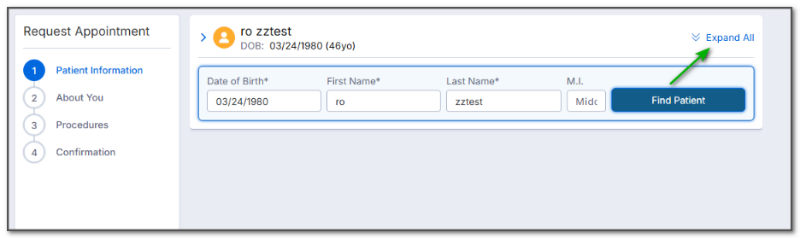

- When done entering patient details, click Next.
Step 2 - About You
Select the referring provider and add any needed documents or comments to send to the imaging center.
- Select the Referring Provider then click Add.
(You may only see one referring provider, or many, depending on your practice settings.)
- If an order, clinicals, pre-auth, or other documents need to be uploaded, click Browse Files and select the file to upload with the appointment request.
- Select the document type from the dropdown.
- If a comment is needed, select the comment recipient, type the comment, and click Next.
Step 3 - Appointment Details
After entering patient details, complete the appointment details, which include: Services/Procedures, Location, Time, and Diagnosis.
Services/Procedures
- Select the Procedure Type and Procedure.
- Click Add.
Location
- Select the preferred Location and click Next.

Diagnosis
- Scroll down to enter the diagnosis (you can search by code or keyword, then click the correct option to select it), add an onset date, if known, and click Add.
- Click Next to view the Summary page.

Step 4 - Summary
After entering appointment details, the Summary page displays all details before sending the appointment request.
Schedule a Screening Mammo or X-Ray Workflow
Request Appointment Button
To request an appointment:
- Click Request Appointment in the top right corner to launch the Scheduling Wizard in a new window.

- In the Scheduling Wizard window, select Schedule a Screening Mammo or X-Ray.
Schedule a Screening Mammo or X-Ray Steps
After clicking Request an Appointment, the scheduling template will open.
- If requesting an appointment for a new patient, enter their Date of birth, First Name, and Last Name, and click Find Patient.
- If no results are found, click Expand All to display additional fields and continue entering patient details.


- Enter insurance details and click Next.
Step 2 - About You
Select the referring provider and add any needed documents or comments to send to the imaging center.
- Select the Referring Provider then click Add.
(You may only see one referring provider, or many, depending on your practice settings.)
- If an order, clinicals, pre-auth, or other documents need to be uploaded, click Browse Files and select the file to upload with the appointment request.
- Select the document type from the dropdown.
- If a comment is needed, select the comment recipient, type the comment, and click Next.
Step 3 - Appointment Details
After entering patient details, complete the appointment details, which include: Services/Procedures, Location, Time, and Diagnosis.
Services/Procedures
- Select the Procedure Type and Procedure.
- Click Add.
Location
- Select the preferred Location and click Next.

Schedule
- Select the preferred day(s) of the week and time range(s). When you do, options will load for Appointment Availability.

Appointment Availability
- Select the time for the appointment to start; use the Prev Month, Next Month, and View More Days options as needed.

- Select either First Available or Preferred Time options for the appointment request. Regardless of which option is selected, the request will go to a queue for the facility staff to call the patient and confirm a time.
Diagnosis
- Scroll down to enter the diagnosis (you can search by code or keyword, then click the correct option to select it), add an onset date, if known, and click Add.
- Click Next to view the Summary page.

Helpful Notes
Patient Chart
Click on the patient’s name, in blue, from any Worklist to access their patient chart.
Inside the patient chart, you will be able to view reports and visit forms and view the DICOM images by clicking the  icon.
icon.

Notes
- Clicking Patients under Search at the top left will show all your recent patients.
- If you forget your password, click the Forgot Password link on the main login page to reset your password.
- If you know your password and want to change it, log in and click your name in the top right corner. From here, click Change Password.
- Clicking the DICOM buttons will launch a window to view exam images in iConnect.
- Reports show in the patient chart without the header information. Printing them will include the header information, to include the facility and patient information.
- You can print any documents from the patient chart.
- You cannot modify the patient’s demographics; you can only view them.
- You can add additional filters in any view by clicking the
 button.
 - If you need to reset your multi-factor authentication phone number, please contact your marketing representative so we can update your account.
Physician Links
Patient Links
Get To Know Us
Interpretation services
Get To Know Us
Patient Links
Physician Links
Interpretation services
© Palmetto Imaging, Inc., All Rights Reserved
Translation services on this website are provided via Google™ Translate, a free automated translation service that can translate text into different languages. This tool is for your convenience only, and should not be considered exact and may in some cases include incorrect language. No warranty of any kind is made as to the accuracy, correctness, or reliability of any information translated by Google™ Translate. Please know that when a translation is requested, you will be leaving the the Palmetto Imaging website and any person or entity who relies on these translation services does so at his or her own risk. If you have any questions about Google™ Translate, please click the following link: Google™ Translate FAQs.